Everything you need on site. Signal or no signal.
The SurveyorSuite apps for iOS and Android are built mobile-first, around one job: getting your site notes down quickly and easily on the walk round. Work the way you like — dictate as you go, type, or take photos; follow the property in walk order or go straight to report order. And finally, draft the report with our AI for maximum speed and an optimised workflow.
Photos drop into your notes at the point you take them, ready for the report, and you can get to all your reports from the phone. It all works with no signal at all — the app saves to the phone and syncs when you are back in range.


 Scan to install
Included in the subscription, not sold as an add-on — no free tier, no per-report fees · same account on web, iOS and Android · see pricing
Capture all your site notes on the app
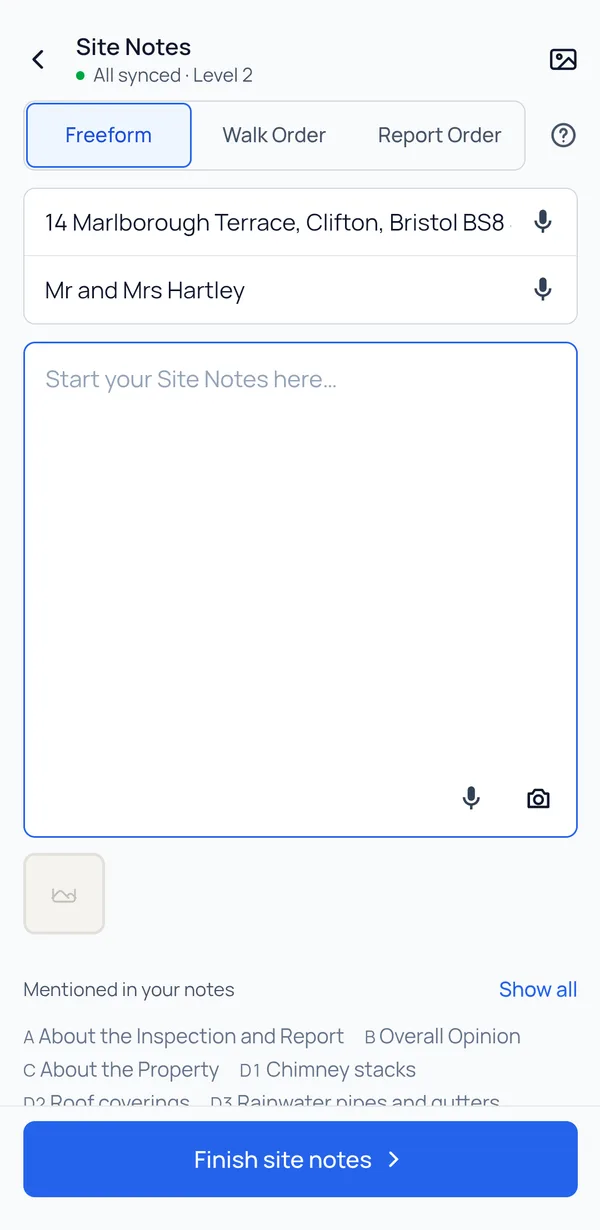
Start a note, pick the report type and record the inspection as you go — talk, type or take photos. Here is how it helps.
- 01
Dictate if you want to
Talk through the inspection instead of typing, or mix the two. Dictation uses your phone’s own speech recognition, so it keeps working out of signal on phones that can transcribe offline, and the words land straight in your site notes.
- 02
Photos land where you shot them
A photo drops into the note at the point in the walk you took it, so it arrives already attached to what you were describing. At drafting time the AI proposes where each one belongs in the finished report and you confirm it with a tap.
- 03
A checklist built from the report itself
It’s there to help you make sure every part of the report is covered before you leave site. The areas come from the report type’s own sections: mention the roof and it ticks itself off. One nudge before you submit catches anything you haven’t covered — “nothing noted for Garage, add or skip?”
- 04
From site note to draft report
Once you’ve finished your site note, submit it to the AI and it drafts the report for you. The draft appears under Drafts, with your site note kept alongside it for reference.
Work the way you want to
Three ways to take your site notes, and you can switch between them whenever you like, even part-way through a visit.
Freeform
One big text box, with reminders of what to cover. Put everything in — dictated, typed or photographed — and the AI drafts the report for you. This way relies entirely on the AI.
Walk order
Your notes laid out in the order you walk a typical home, so each part is easy to find and fill in as you go. Built for the phone, and for speed.
Report order
The standard RICS report order everyone recognises, section by section as the finished report reads. Not tuned for the walk round, but familiar.
Whichever way you work, you can export your site notes as a dated, timestamped PDF with the photos where you took them — a record of what you saw on the day.
In and out of signal? That’s fine.
Basements, lofts and thick-walled blocks are part of the job. The app saves everything to your phone as you go, so it doesn’t matter if the signal comes and goes during a visit.
-
On site
Work with or without signal. Your notes, photos and report save to the phone as you go.
-
Back online
Once your phone has a connection again, everything syncs up on its own. There is nothing to press.
-
Ready for you
Review the report on your computer, or submit your site notes to the AI from your phone to draft the report — that step needs an internet connection.
Your team’s reports, on your phone
When a colleague shares a report with you, it’s on your phone too — with its photos, ready to open on site, even without signal.
How teams work-
It arrives with its photos
A report shared with you shows under Team on the phone and opens with the photographs attached — so a second pair of eyes on a tricky Level 3 works on site, not just at a monitor.
-
Your edits flow back
Changes and new photos you make offline travel back to the author’s desktop when you have signal again. There is no re-sending and no second copy of the file going round by email.
-
Revoke on the web, gone from the phone
Take access back and the report leaves the device. Every grant, revocation and restoration is written to the report’s access history.
Questions surveyors ask about the apps
Does the app really work with no signal?
Can I dictate my notes without a connection?
What if the same report gets edited on my laptop while I am offline?
Do I need to download anything before I set off?
Do I get the CRM on my phone as well?
Are the apps an extra cost?
Which devices are supported?
Is my work safe if I lose the phone?
Try it on a real inspection
Start your 1-month free trial on the web, sign in on the phone with the same account, and take the next job’s notes on it.
1-month free trial · iOS, Android and web on one subscription · cancel any time